Not every report is written by the person who walked the site. Maybe you're the one coordinating: a field tech, a junior engineer, or a sub does the visit while you manage three other projects. Or maybe the visit already happened, and the evidence is sitting in your camera roll and a voice memo app while the report deadline gets closer. This guide covers both situations from the same seat: your desk. The difference shows up fast: every photo and video is organized and easy to access across all devices, and writing the final report in your professional template takes minutes not hours.
The core idea: Tenera Reports builds the first draft of the report from evidence, and it does not care how the evidence gets there. Captured live on a phone across town, dragged in from your desktop, or pulled off your camera roll after the fact, it all lands in one organized feed that becomes the report. Your job at the desk is simply to get the evidence into one place.
Set up the capture session
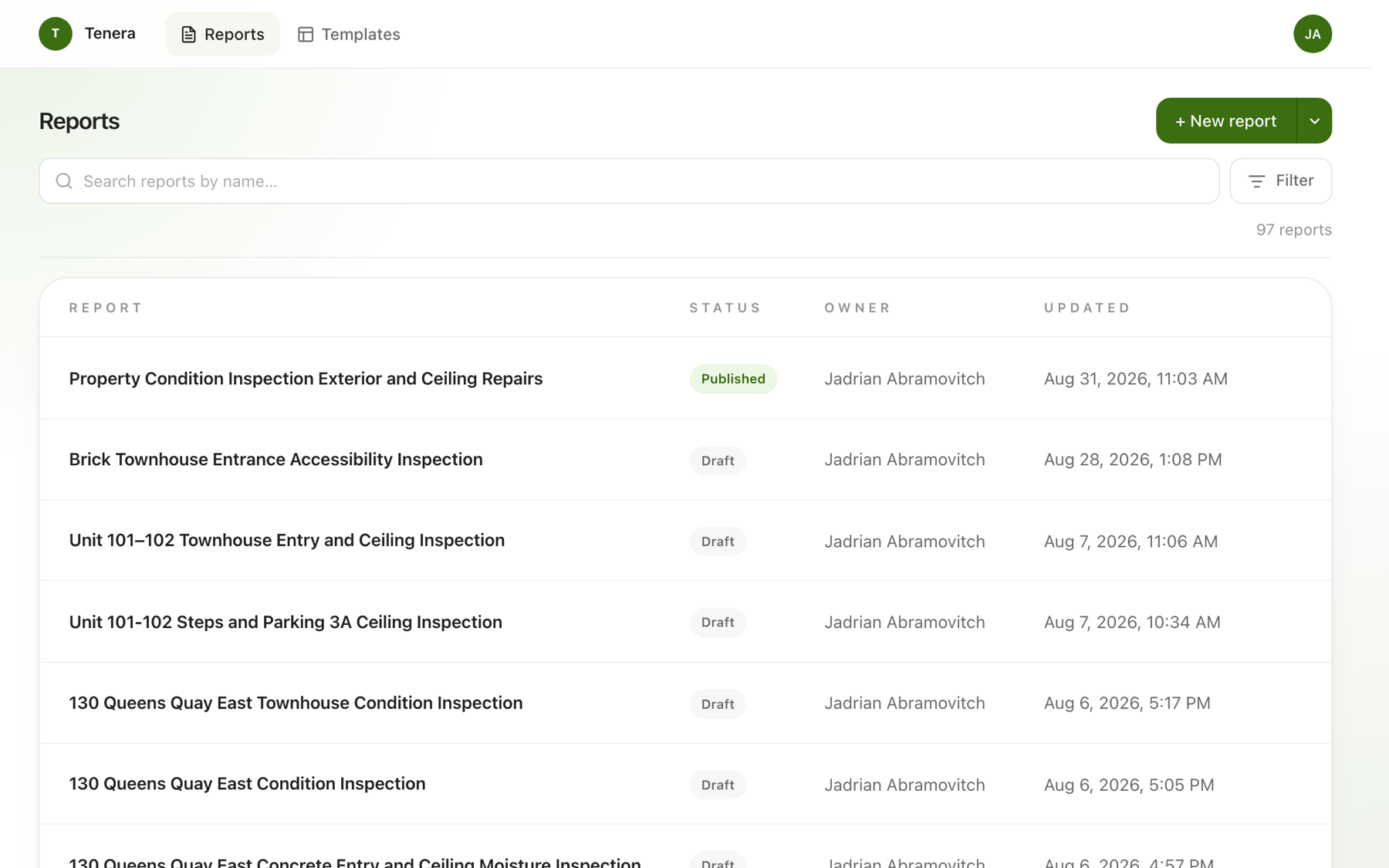
From the dashboard, click the green + New report button in the top right.
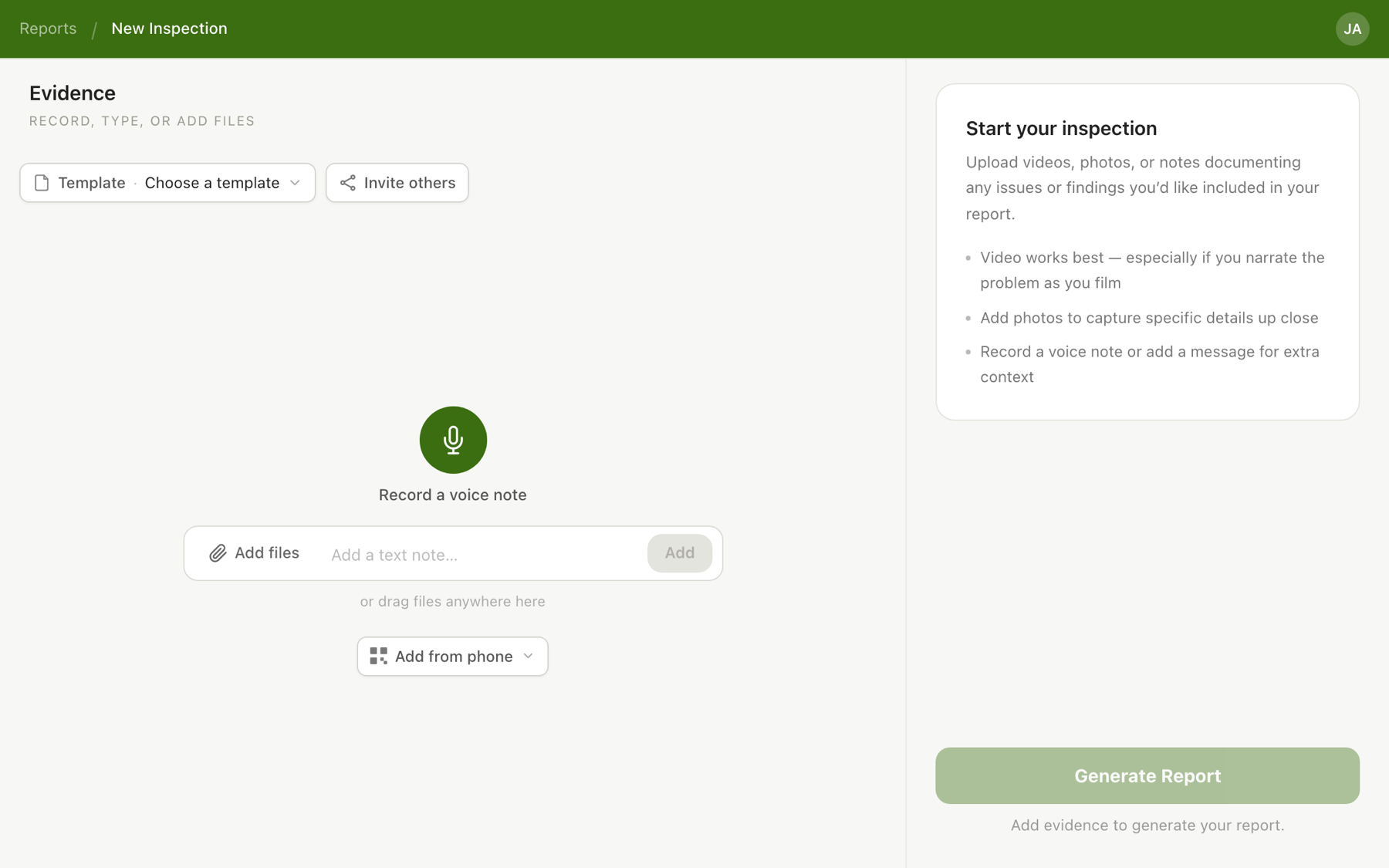
You're now looking at an empty capture session: a Record a voice note button front and center, a note bar with an Add files button, and the whole screen doubling as a drop zone. Whatever you add here becomes the evidence feed.
What happens next depends on where the evidence is coming from.
If someone else is walking the site
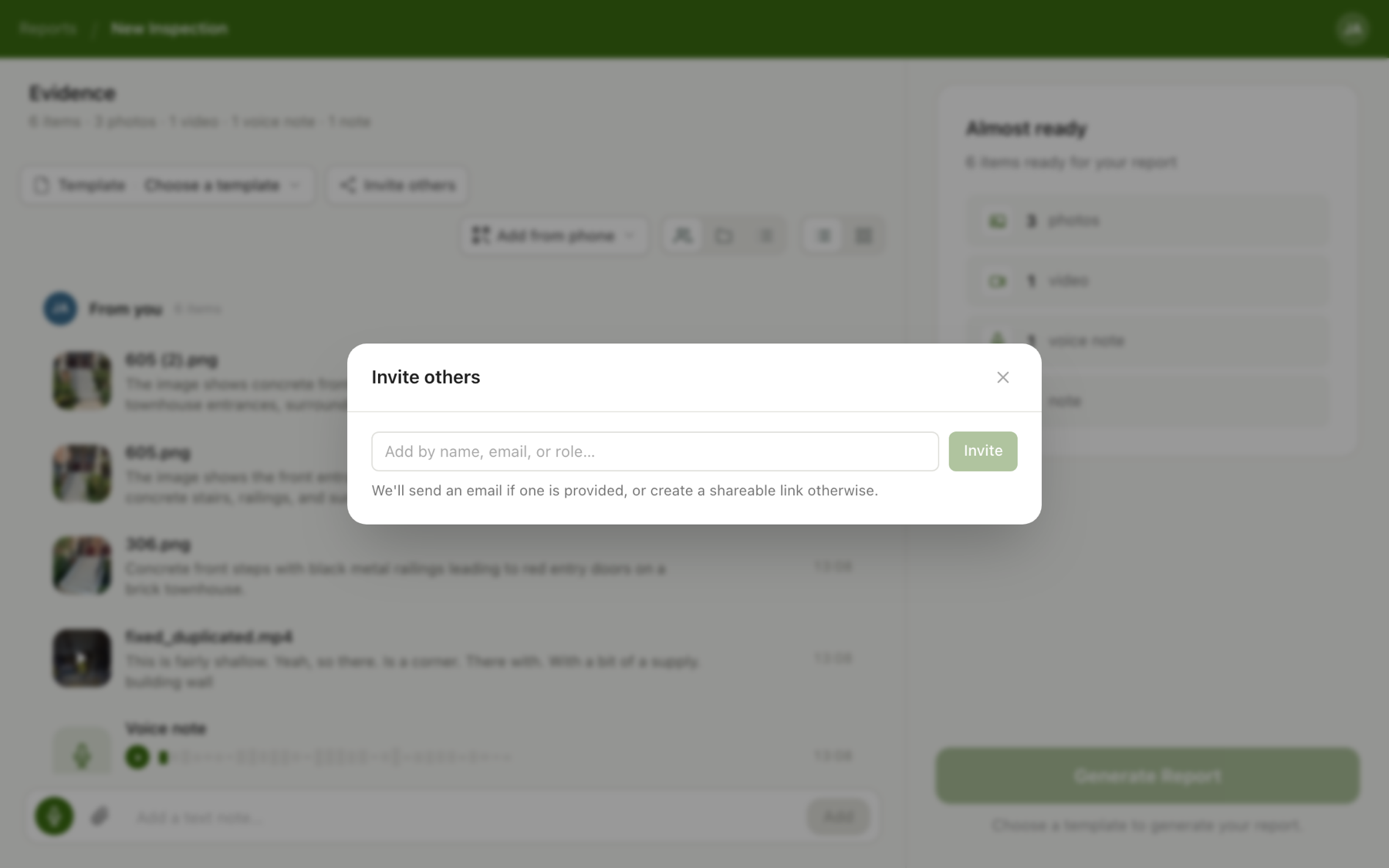
Click Invite others in the toolbar. Add your field person by name, email, or role: with an email, they get an invitation directly; without one, you get a shareable link to send to them. Either way, the link opens the same capture session on their phone, ready to record.
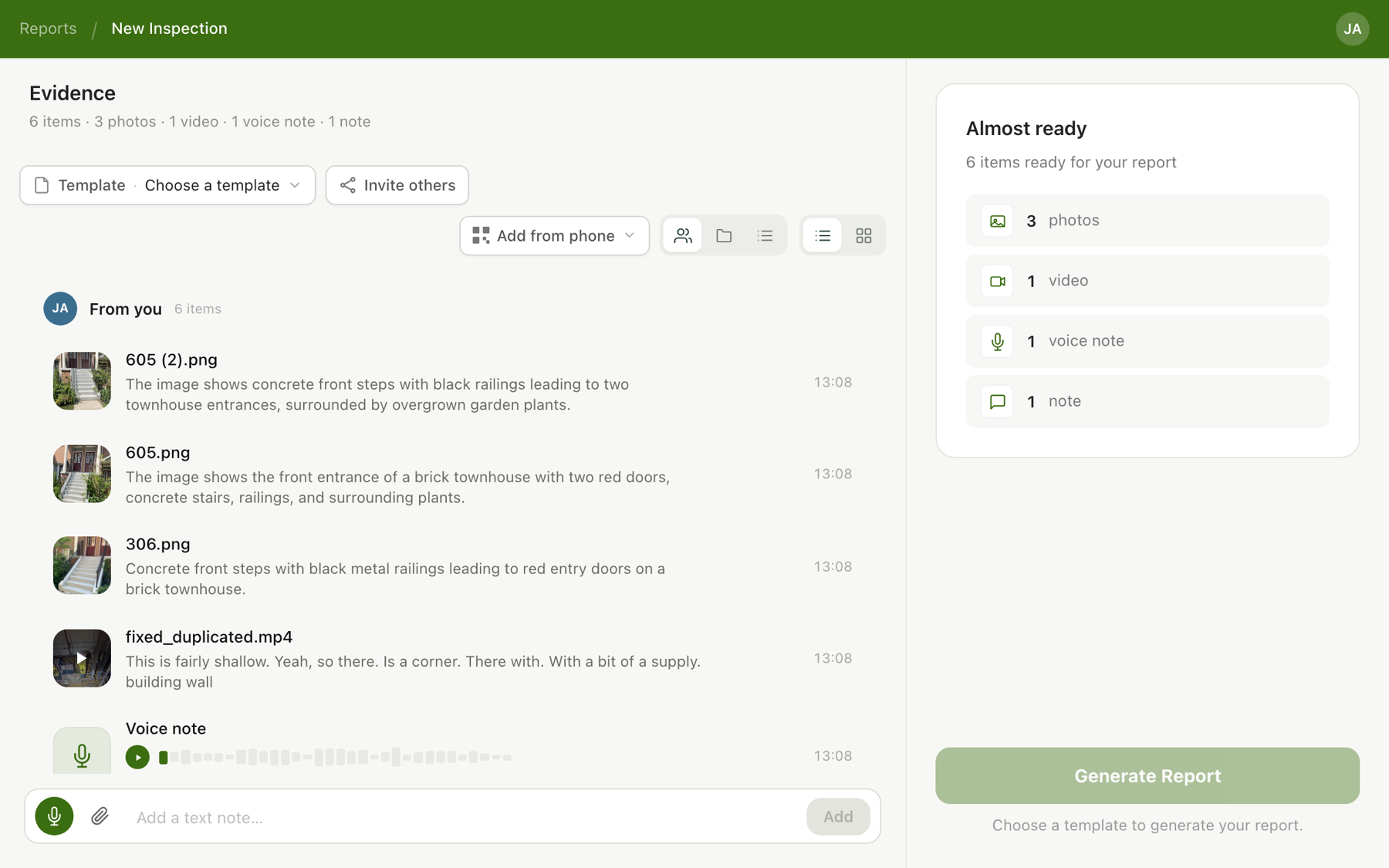
Everything they capture lands in your feed as it happens, labeled by contributor, with AI-generated descriptions on the photos and transcriptions on the video and voice notes. That changes what you can do from the desk: instead of waiting for a zip of photos at the end of the day, you watch coverage build in real time. If part of the evidence is still missing while your tech is packing up, you can call them before they've left the parking lot, not tomorrow.
Two things worth doing before they head out:
- Brief them against the template. Walk them through the sections the report needs to cover before they go, and they can capture the site in that order.
- Send them the field guide. It's the same workflow from the phone's side of things, including the habit that matters most: narrating video while filming, so their observations arrive in the draft already written in their words.
If the visit already happened
You did the walk without Tenera, and now you have a camera roll, some videos, and maybe a voice memo. Get them into a capture session and the organizing happens for you.
From your computer: drag the files straight onto the capture session, or click Add files next to the note bar to browse for them. Photos, videos, and audio files all work.
From your phone: click Add from phone in the toolbar and scan the QR code with your phone's camera. The capture session opens on your phone, where you can upload straight from your camera roll.
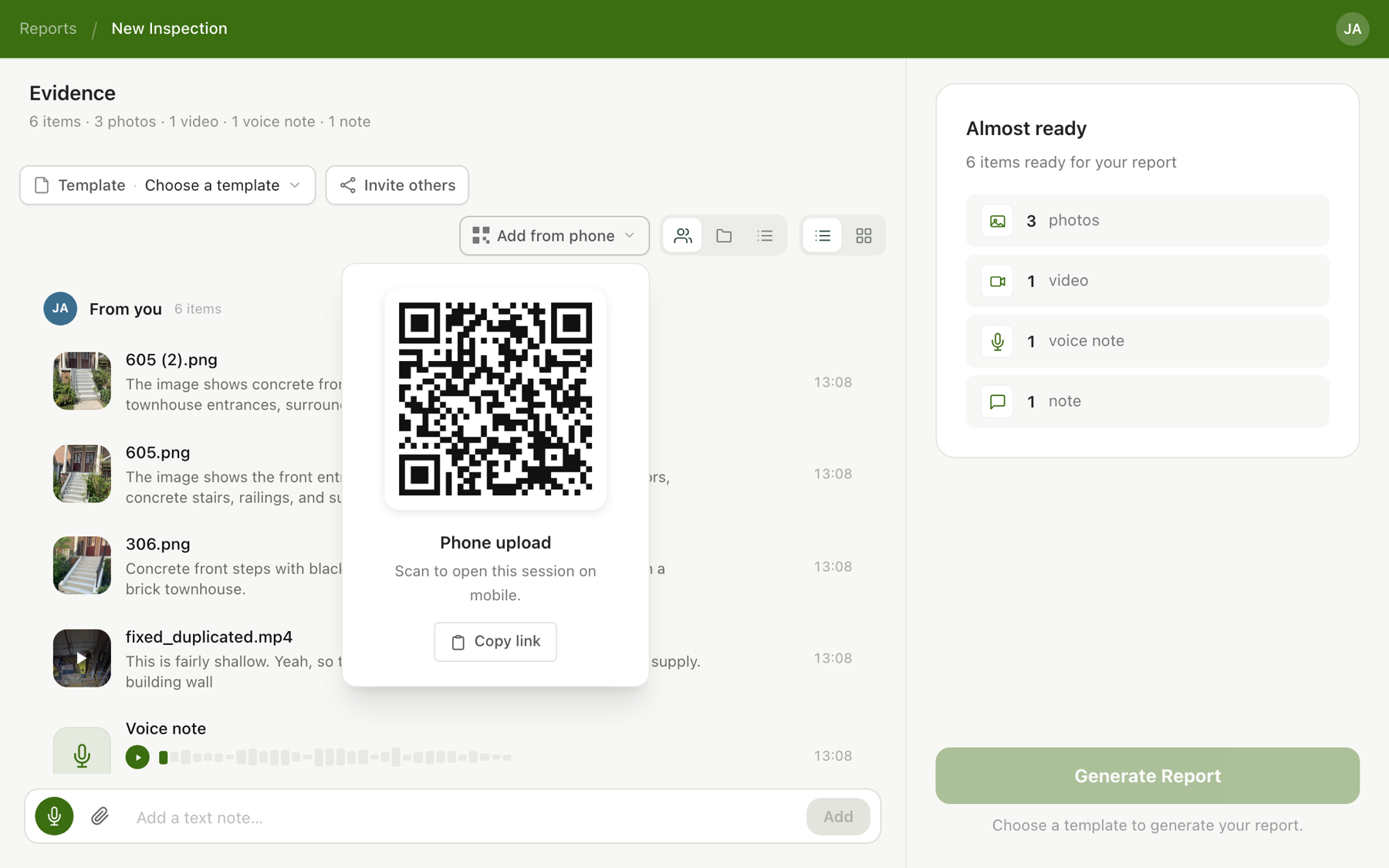
As each file lands, Tenera processes it: photos get AI-generated descriptions, videos and voice memos get transcribed. A hundred unnamed photos from Tuesday become a labeled, searchable evidence feed in a few minutes.
Then add what only you know. Type notes into the note bar for anything you remember that never got recorded, and when a note is about a specific photo, click that photo in the feed and type into its Notes field ("unit 102, second riser from bottom"), which guarantees the note and the image travel together into the report.
Generate the draft
Click Template · Choose a template in the toolbar and pick the template that fits the visit, or select Structure: Auto and describe the structure you want. Click Done, then click Generate Report.
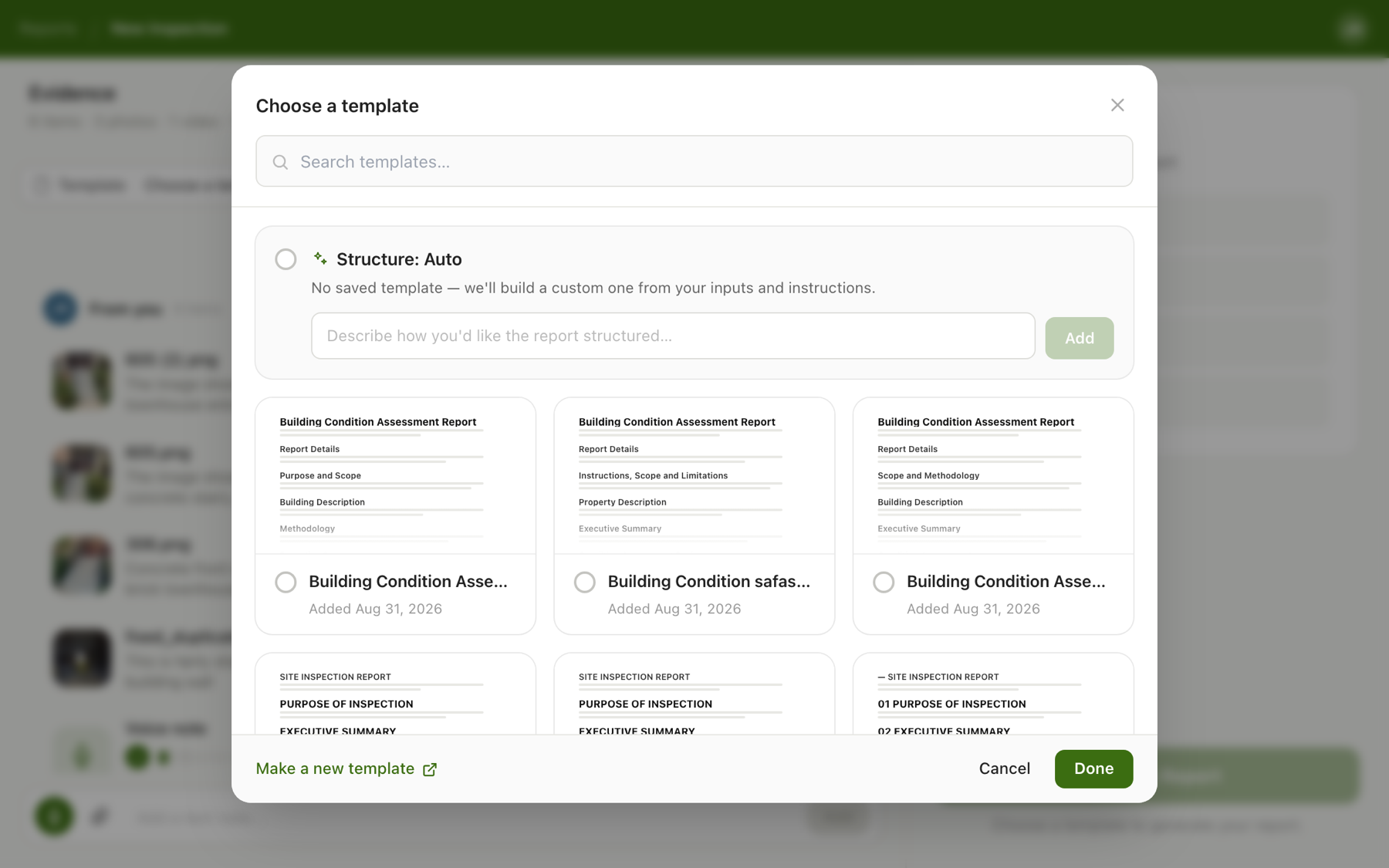
Generation runs on our servers, so you're free to take a call or close the tab; the draft will be waiting in the editor. Observations arrive written from the narration and notes, and photos land with the findings they support.
Review, and fill in what the evidence couldn't say
The draft will tell you what it doesn't know. Click Start interview on the prompt that appears over the document, and the AI interview asks targeted questions, one at a time, starting with the biggest gaps it found. This is where the desk workflow gets its unfair advantage: everything that lives only in your head, or in your field person's phone call, goes into the report by answering questions rather than hunting through the document for thin spots.
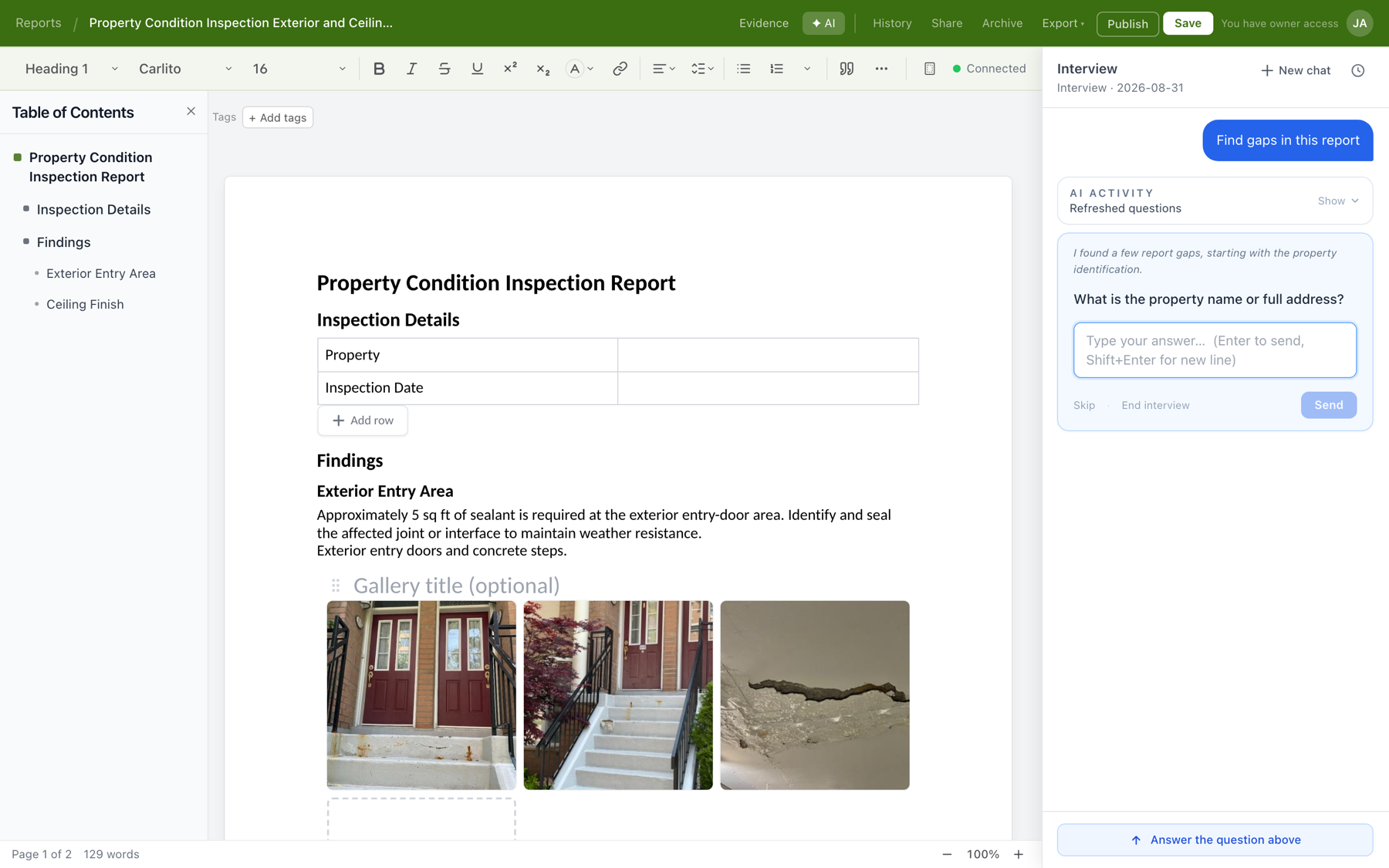
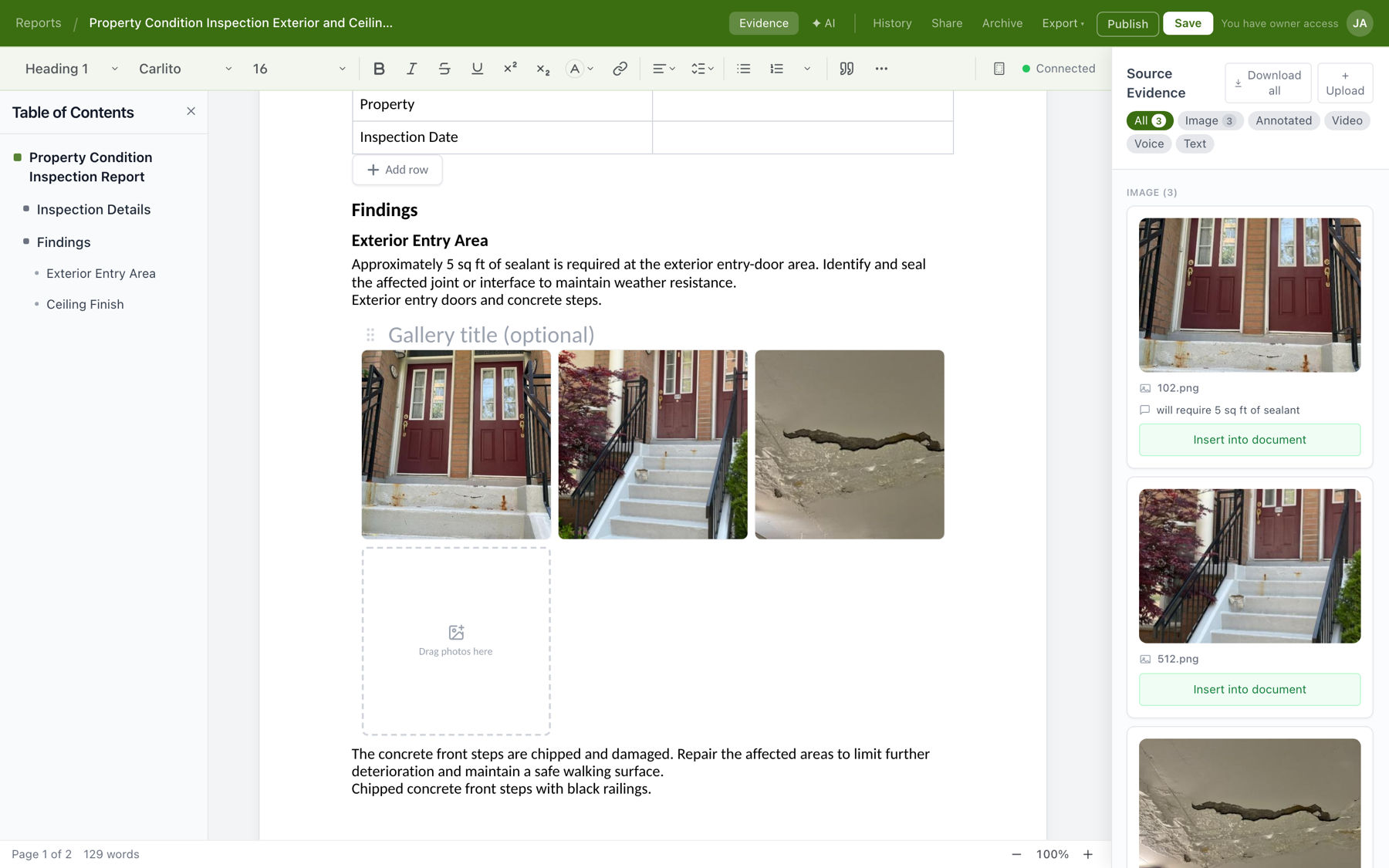
From there it's a review pass: check the findings, tighten the language where it matters, and fill in the project details. If the draft skipped a photo you want shown, everything captured stays one click away in the editor's Evidence panel, ready to insert into the document.
Deliver it
The finished report leaves Tenera two ways, both in the editor's top bar.
Publish a web link. Click Publish and Tenera creates a polished read-only version of the report at its own web link, with a Copy link button ready for your email to the client. The published page is a snapshot, so the client always sees the finished version even while you keep working. After an edit, click Update published version and the same link shows the new version.
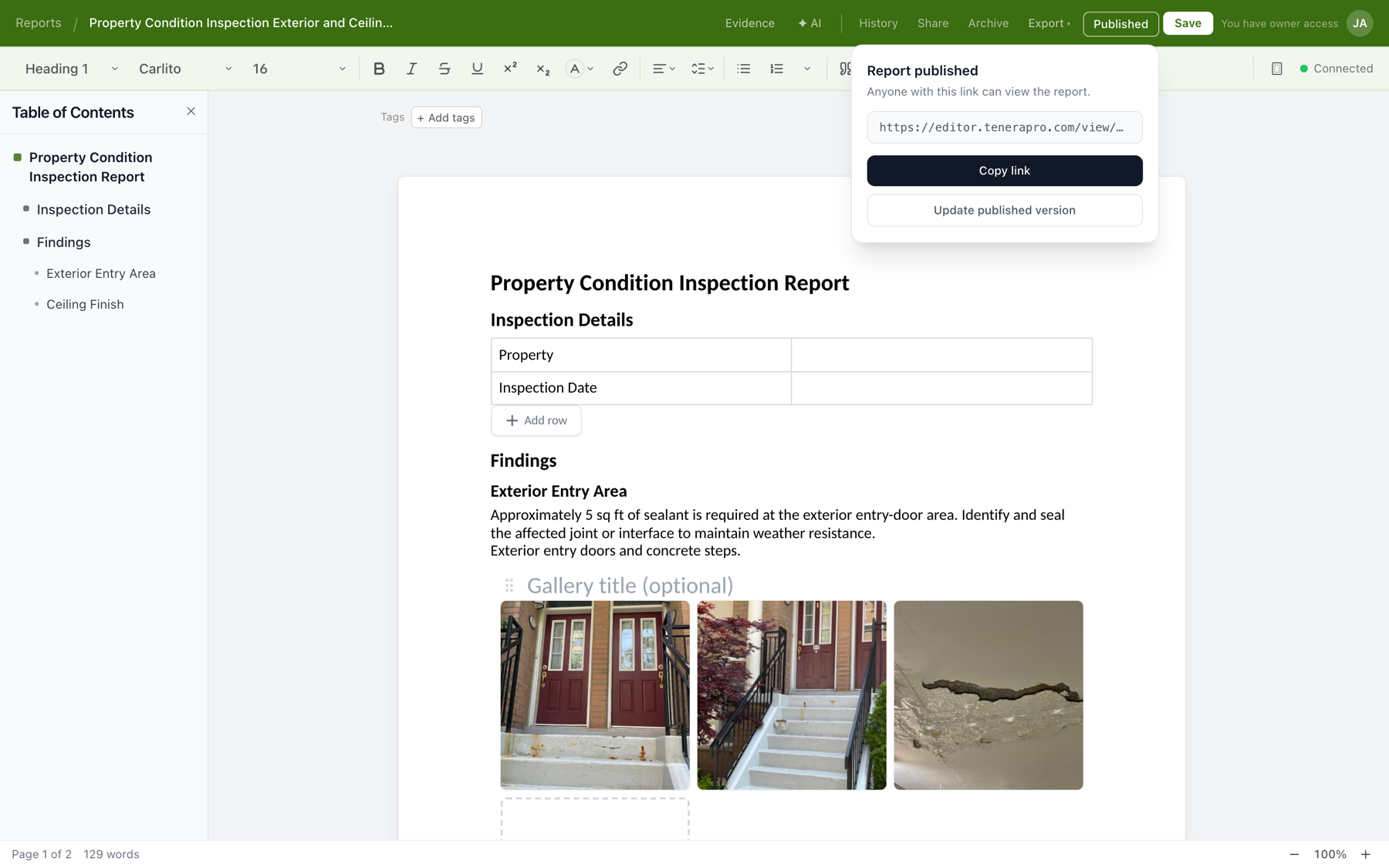
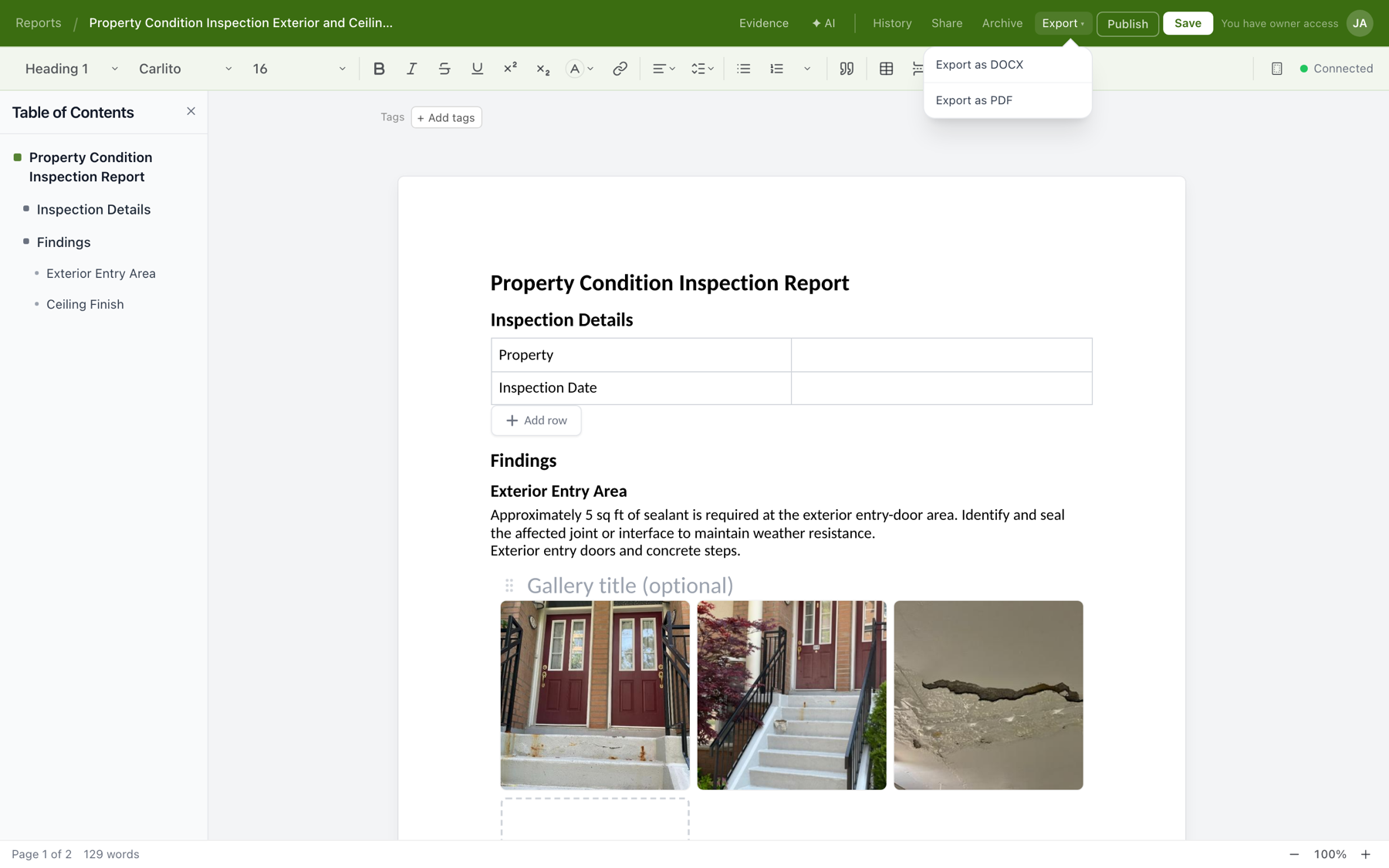
Export to Word or PDF. If your deliverable process requires a file, open the Export menu and choose Export as DOCX or Export as PDF. The Word export is a normal editable document, so letterhead and document-control processes carry on unchanged.
If your team isn't on Tenera yet
Everything above assumes you have Tenera Reports open at your desk. If you're still reconstructing site visits from a zip of photos and someone else's shorthand, this workflow is the difference we built the product to make. Book a demo of Tenera Reports and we'll run one of your real projects through it.